BADGE HALL OF FAME
the badge you just scanned is hiding a Challenge.
connect to it's access point. poke at its web server. read its source code.
- open your phone's wifi list. many open networks so wow!
- join it. a portal pops up — the badge is talking to you
- figure out the unlock. it's easier than you think
- drop your handle. you're immortal now ↓
How to use your SIEMPosium badge
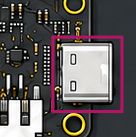
Charging — Use This Port and ONLY This Port
See that USB-C port? That's your charging port. Plug in here to charge — and nowhere else. Plugging into any other connector on this board will fry the device, make you sad, and I did warn you. Don't say I didn't warn you.
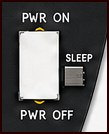
O.o a Switch
Charge your badge via USB-C using the port on the badge. Yes, we just told you about the charging port. We know. Read it again if you need to. Ensure the "Power Switch" is either ON (topmost position) or DEEP SLEEP (middle position).
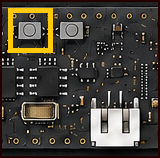
Waking up from Deep Sleep
If your badge was switched into DEEP SLEEP (middle position), put the switch back to ON (topmost position) and click the boot button to turn it back on. It's not dead, it's just resting — like you should be, but here you are wondering how much longer this meeting that could have been an email is going to take.
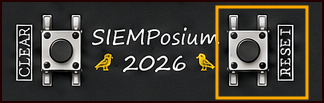
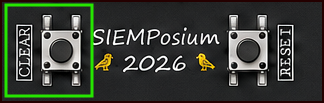
Forgot the Admin Password?
Press and hold the RESET button, then the CLEAR button, and be ready — the screen will flash a QR code and then display the credentials for a brief period of time. You've got about 3 seconds before it's gone. Maybe practice your reading speed first.
Saving Battery — LED Brightness
Annoyed with the LEDs flashing and want to save some battery? Tap the RESET button to cycle through OFF → LOW → MEDIUM → HIGH. Your coworkers will thank you. Your eyes will thank you. The badge will not care.
LCD Brightness
Annoyed with the LCD brightness? Well, you're out of luck — 25% is the lowest you can go. Nice try though.
Powering Off or Sleeping
Want to power off the device? Just switch it to PWR OFF (bottom position) — it's that simple. Want to put it to sleep to save battery instead? DEEP SLEEP (middle position) does exactly that — don't forget you can flip it back to ON to wake it right back up.
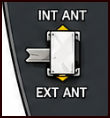
o.O Another Switch
See that little T-shaped thing poking out the front of your badge? That's an external antenna, and yes, it does make you look fancy. This switch controls whether the badge uses its onboard internal antenna or that distinguished little accessory. Here's the critical part: if you flip this to EXT ANT without the external antenna actually connected, the RF energy has nowhere to go — it reflects back into the radio and fries it. Your badge becomes a very stylish, very dead paperweight. So: antenna plugged in? Knock yourself out with EXT ANT. Antenna removed? Leave this on INT ANT and back away slowly.